The OS Hub Embedded Map lets you display your supplier data on an interactive map directly on your website. This guide walks you through the full setup process, customizing data points, ongoing maintenance, and technical considerations for your team.
The OS Hub Embedded Map is available on free and paid plans. To request access or learn more, visit this page.
Setting Up Your Embedded Map
Follow these steps to get your Embedded Map live on your website:
Upload your data to OS Hub: Follow the instructions on the Preparing and Uploading Data Guides.
Open the Embed settings: Navigate to your OS Hub Settings menu and select Embed.
Customize your map: In the Embed tab, configure your map's data points, branding, and size. A live preview updates as you make changes. Customization options vary depending on your package. For more information check the sections below.
Add the code to your website: Copy the automatically generated embed code and paste it into your website. You may need to involve your IT team for this step.
Technical and security considerations
- The map is added to your site as a raw iframe tag, so your website must be using a CMS that supports adding raw iframe tags.
- Because of the way the Embedded Map is designed, it is essentially loading a new page inside your current website. This means it is not actually loading any content directly into your website that could disrupt the surrounding page or other pages. From a technical perspective, OS Hub cannot see any data or content on the surrounding page.
Keeping your embedded map up to date
Your Embedded Map automatically reflects the data from all active, public lists associated with your Data Contributor account on OS Hub. There are two types of updates to be aware of:
- Updating your data Any changes made to your facility lists in OS Hub will be automatically reflected on your map. Note that all data edits must be made directly in OS Hub — it is not possible to edit data from within the Embedded Map itself.
- Updating your map settings Most configuration changes — such as branding, data fields, and map style — are applied automatically and will be reflected on your embedded map without needing to update the embed code. The only exception is size: if you change the dimensions of your map, you will need to generate a new embed code in the OS Hub Embed Settings and replace the existing one on your website.
Configuring Your Map
The configuration options available to you depend on your package. The guide below covers Embed+ and Embed Deluxe only*.
*If you are on the Embed package, your configuration is limited to adjusting the map size and hiding sector data. The button color can be set to black or OS Hub green only.
Embed + Package
Customize colors
This setting changes the color of buttons (such as Download and Search) to match your website's branding. You can specify a color using RGB, HSL, or HEX codes.

Choose your preferred Map Style
This setting controls the visual style of the world map displayed on your embedded map. Two options are available:
- Default — A standard full-color map with conventional cartographic styling (blue oceans, green and brown landmasses, etc.).
- Silver — A minimalist monochrome map in silver and white tones, ideal for embedding on websites with a neutral or light color scheme.
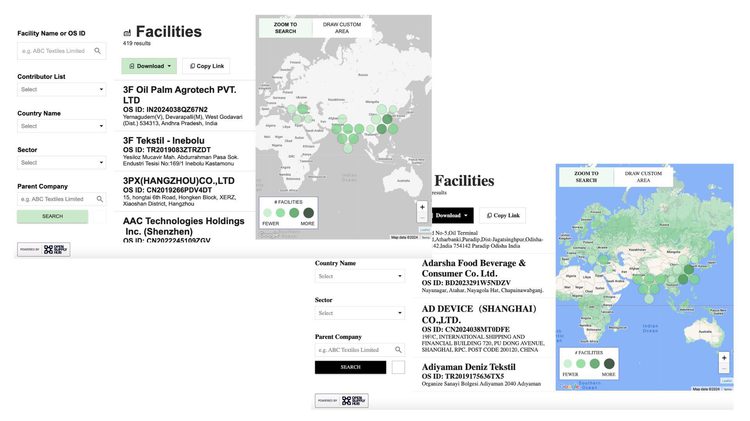
Customize Size
Set the dimensions of your embedded map to fit your website layout. You have two options:
- Full width — Check the 100% box to have the map automatically fill the available width of your webpage, with the height adjusting proportionally.
- Custom dimensions — Enter specific width and height values in pixels to set a fixed size.
NOTE: If you select 100% width, you will not have additional padding on the sides of your Embedded Map, which could affect the user experience while scrolling on the page. We recommend thoroughly testing on multiple devices and screen sizes if using the 100% width feature.
Hide Sector Data
If all your production locations operate in the same sector, you can check this box to omit sector data from the production location profiles and remove the sector filter from the Search & Filter panel, avoiding redundant information.
Deluxe Package
The Deluxe package offers all the customization options listed for the Embed+ package plus the additional options below.
Choose custom data points
All Embedded Map packages display the same standard OS Hub fields: Country, Name, Address, Sector / Product type(s), Facility / Processing type, Number of workers, and Parent company.
If you have the Embed Deluxe package, you can also display additional custom fields. To get started, let the OS Hub Team know what custom fields you would like to include and they will provide a customized Excel upload template. You can request new fields at any time.
Popular custom fields chosen by other users include:
% female workers
% capacity utilization
Tier
Length of relationship with facility
Responsible sourcing / audit results
Social / environmental improvement program
Unionization / worker representation at facility
Audit date
Certifications
Customize which data points appear on production location profiles
The Fields setting controls which data points appear on a production location's profile on your map, and the order in which they are displayed.
Facility name, address, and OS ID are always included.
You can also use this setting to rename fields, changing the label that appears on the profile.

NOTE: Reordering, hiding and renaming fields only affects the profile view. The dropdown menus in the map's search & filter panel cannot be adjusted.
Make custom data points searchable
Custom fields can be made searchable through the free-text search box in the search & filter panel:
- Go to Settings > Embed
- Find your custom field in the list (e.g., products_&_services_description)
- Check the Searchable box next to that field
- Optionally, use the Search box label setting to rename the search box label to indicate what users can search for
Once enabled, users can type keywords into the free-text search box to search within that field. Renaming the label helps users understand what kind of terms to enter.
NOTE: The dropdown menus in the map's search & filter panel are linked to OS Hub's standard menus and cannot be customized — it is not possible to remove, rename, or add custom fields to them.
Display your own data instead of OS Hub defaults
By default, production location profiles on your Embedded Map show the facility name and address as they appear on OS Hub.
If you'd prefer to display the production location names from your own uploaded data instead, check the box Use my Facility Data in the Promoted Fields section.
Choose the font that best matches your website
Select a font from the drop-down menu to match the typography of your website as closely as possible. If no font is selected, the default OS Hub font will be applied.
Available fonts:
OS Hub Website Font
Arial
Tahoma
Trebuchet MS
Times New Roman
Georgia
Garamond
Courier New
Brush Script
Copperplate
FAQ: How does the Search & Filter panel work?
The Search & Filter panel on the Embedded Map replicates the functionality of the OS Hub website exactly and cannot be modified. Below is an explanation of how each search/filter field works and what data it displays.
- Facility Name or OS ID: Free text search field. This is the only field that can be customized to make a specific data point searchable (see below).
- Contributor List: Drop-down menu. Displays the names of the lists you have uploaded to your account. You can structure your list to surface supplier tier, programs, and other attributes.
- Country Name: Drop-down menu.
- Sector: Drop-down menu. Only entries matching the OS Hub standard sector list will appear here. This filter can be removed selecting the Hide Sector Data checkbox.
- Parent Company: Free text search field.
- Facility Type and Processing Type: Drop-down menu. Only entries matching the OS Hub Taxonomy will appear here.
- Product Type: Free text search field.
- Number of Workers: Drop-down menu with predefined worker count ranges.
Two important limitations to be aware of:
- Empty fields: If you have not provided data for an optional field in your list, the drop-down menu will still be visible but will not return any results when used.
- Exact match required: Only the Facility Name field supports limited fuzzy search. All other text fields require an exact match to the value shown on the production location profile — they do not support misspellings or partial words.
Have questions?
First, check out our FAQs page - we may have already answered your question! If you can't find what you need there, please reach out to support@opensupplyhub.org and we are happy to assist you. We look forward to seeing your data in Open Supply Hub!
